What your customers see
Slotiva adds no booking page of its own: your customer books on the WooCommerce checkout page, in the same step as paying.
Choosing times at checkout
When a bookable product is in the cart, the checkout shows Choose your times (or Choose your time when the product allows one time per order):
- a day strip with how many times are free on each day — closed days are marked;
- the free times of the selected day;
- Your selection, with the price and a button to remove each time.
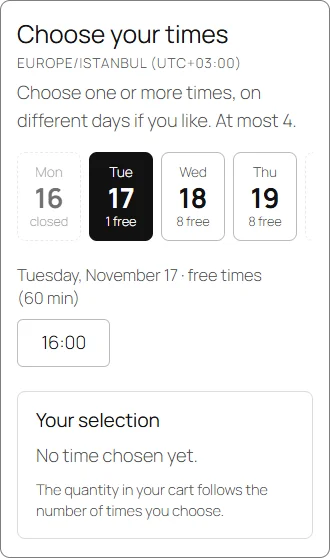
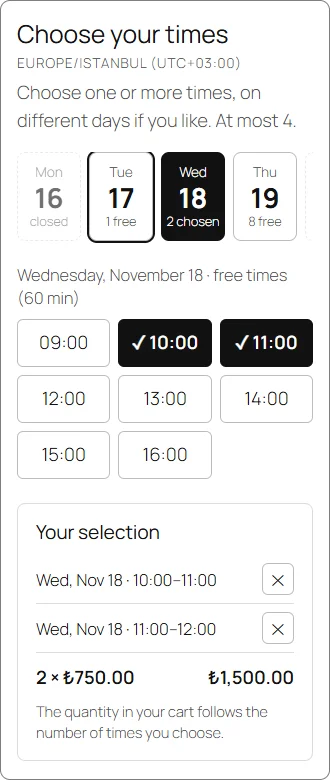
Customers can choose one or more times, also on different days, up to the product's maximum. With per-hour pricing the cart quantity follows the number of times chosen — the customer does not change the quantity themselves.
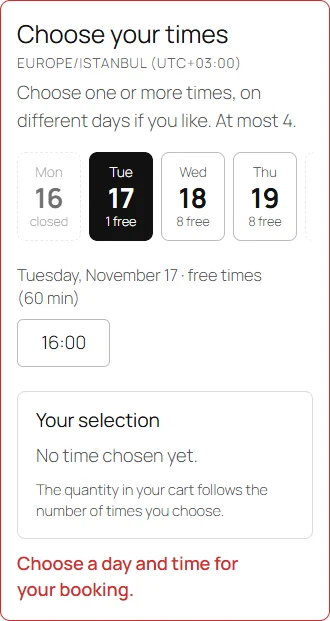
If the customer presses Place order without choosing a time, the picker shows Choose a day and time for your booking., scrolls into view and takes the focus.
When a time is taken in the meantime
Two customers can look at the same free time. The first one to place the order gets it; the second sees that one of their times was just taken, the free times are refreshed and their details stay filled in, so they only choose again.
While the customer pays
| Payment | What happens to the time |
|---|---|
| Card (for example PayTR) | Held for the card payment window (Slotiva → Working hours, default 45 minutes). A failed payment keeps the hold, so the customer can retry from the order's payment page. Card orders are never cancelled automatically. |
| Bank transfer | Held until the transfer deadline (default 24 hours). If the money does not arrive, the order is cancelled and the time opens again. |
| Pay on site, free orders | Confirmed at once. |
A customer who already has several orders awaiting payment is asked to complete them before booking more.
After the order
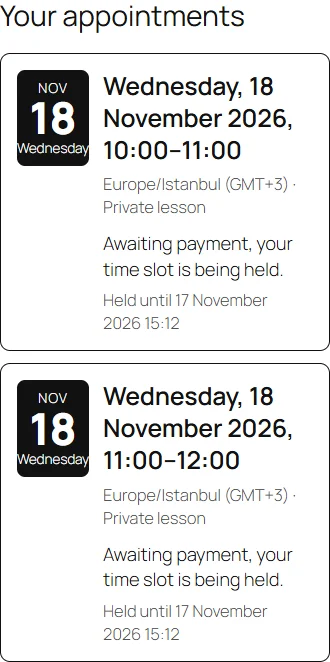
The order confirmation page and My account → Orders show an appointment card for each booked time, with the date, time, time zone, service and its status (for example Awaiting payment, your time slot is being held). Confirmed appointments offer a calendar file (.ics) and a Google Calendar link.
The customer also receives emails: booking confirmed, a reminder before the appointment, time changed and booking cancelled — see Settings and emails.