Managing appointments
The appointments list
Slotiva → Appointments opens with four counters — Today, This week, Awaiting payment and Pay on site — and the list in four tabs: Today, Upcoming, Past and Cancelled.
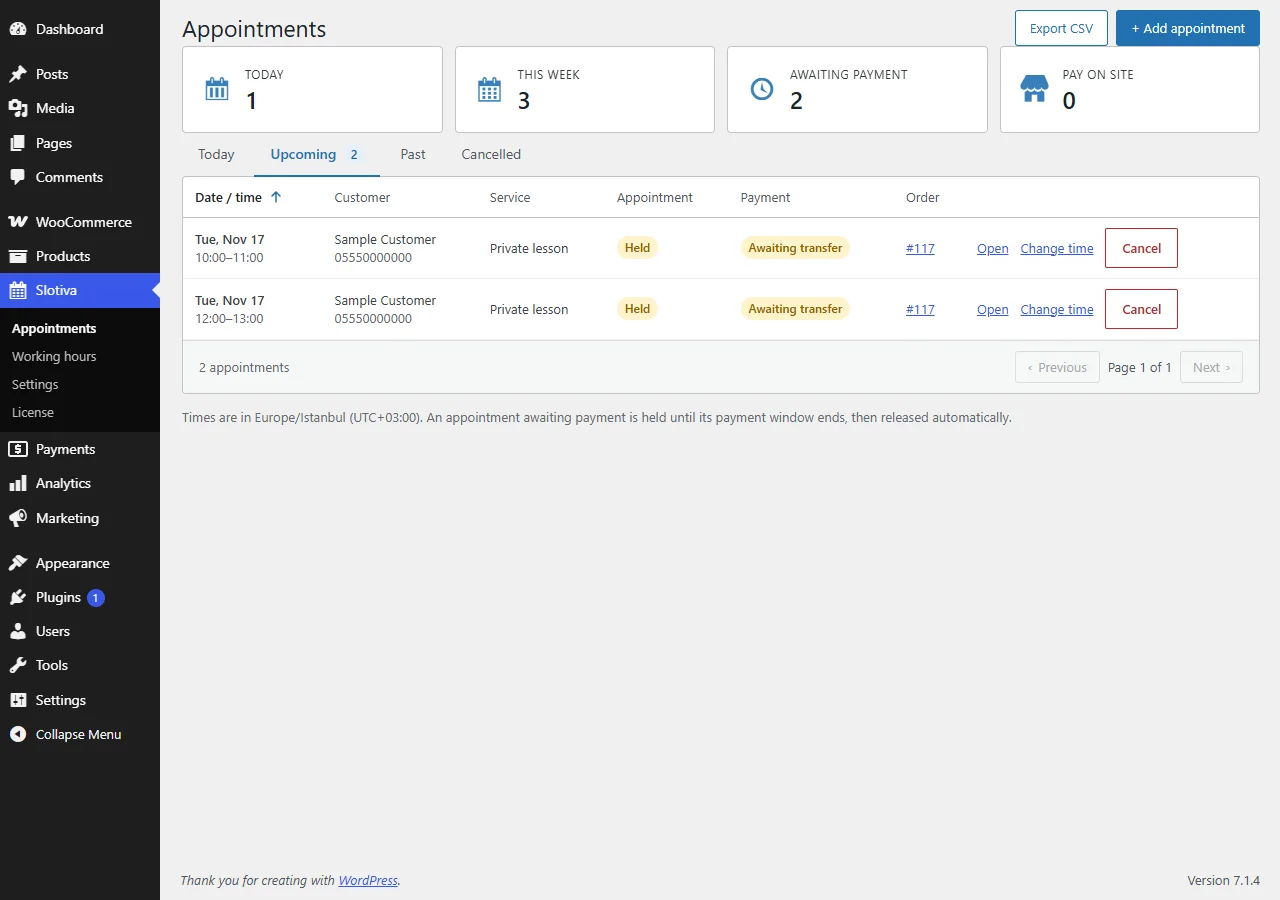
Each row shows the date and time, the customer and phone, the service, the appointment status, the payment status and the order. From the row you can Open the appointment, Change time or Cancel. All times are in your site's time zone (shown under the list).
Statuses
- Held — the customer is paying; the time is kept for them.
- Confirmed — booked.
- Completed / No-show — marked by you after the appointment.
- Cancelled.
- Expired — the payment did not arrive within the hold time; the time opened again.
- Conflict — a late payment arrived but the time was already taken (see below).
The appointment detail
Click Open to see the customer, service, location, order, the number of changes used and the full History of the appointment.
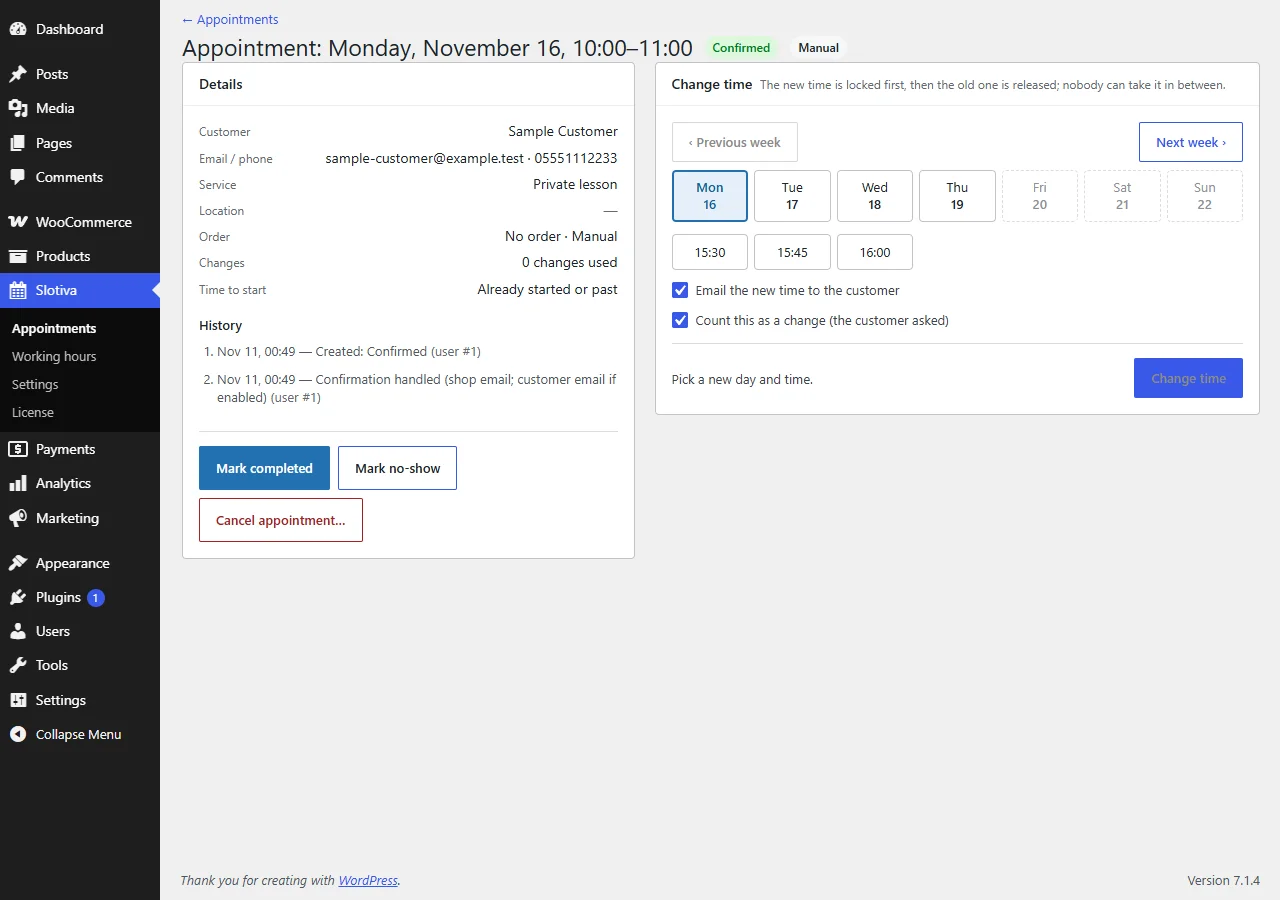
From here you can:
- Change time — pick a new day and time. The new time is locked first, then the old one is released, so nobody can take it in between. Tick Email the new time to the customer to send the Booking time changed email, and Count this as a change when the customer asked for it.
- Mark completed or Mark no-show after the appointment.
- Cancel appointment… — the time opens again (a Conflict appointment never held a time, so nothing opens).
- For a bank-transfer order that is awaiting payment, extend the payment window.
Adding an appointment by hand
For phone or walk-in bookings, click + Add appointment, choose the service and a free time, and enter the customer's name (required), phone and email. The appointment is created without a WooCommerce order and marked Manual.
Exporting
Export CSV downloads the list. The file opens correctly in Excel with Turkish settings (UTF-8, ; separator) and cells are
made safe against spreadsheet formulas.
Late payments and conflicts
Sometimes a payment arrives after its hold has run out. If the time is still free, Slotiva books it again. If someone else has taken it meanwhile, the appointment is marked as a conflict and the shop receives the Booking conflict email: refund the order or set a new time by hand.